Published
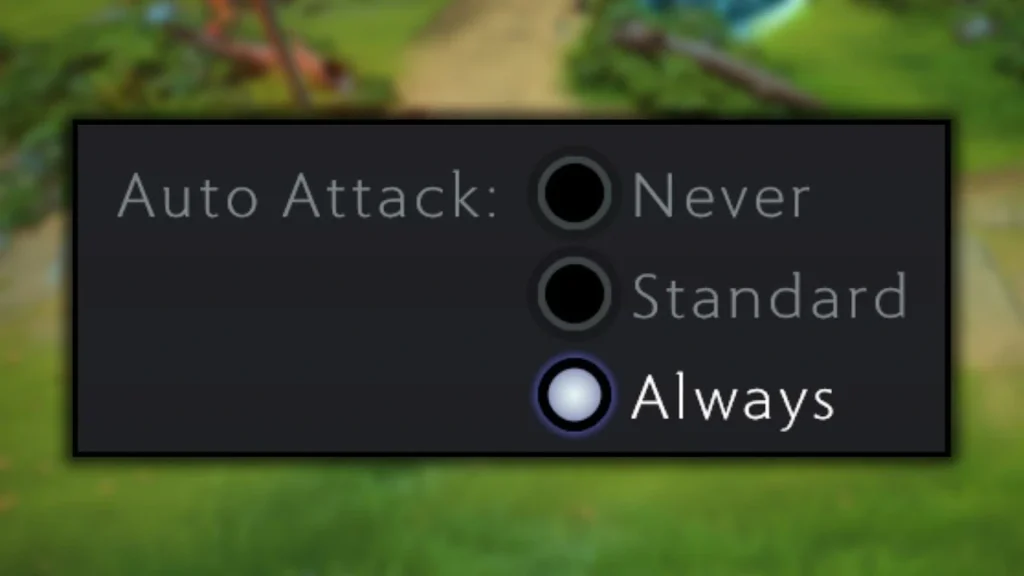
Auto attack decides whether a selected unit starts attacking on its own, without a direct attack command. The best setting depends on the hero and how the player likes to control units. It won’t fix last-hit timing or target choice.
Enter Demo Hero, stand beside enemy creeps, and hold off on attacking. Watch how the unit reacts first under each mode.
Apply the setting now
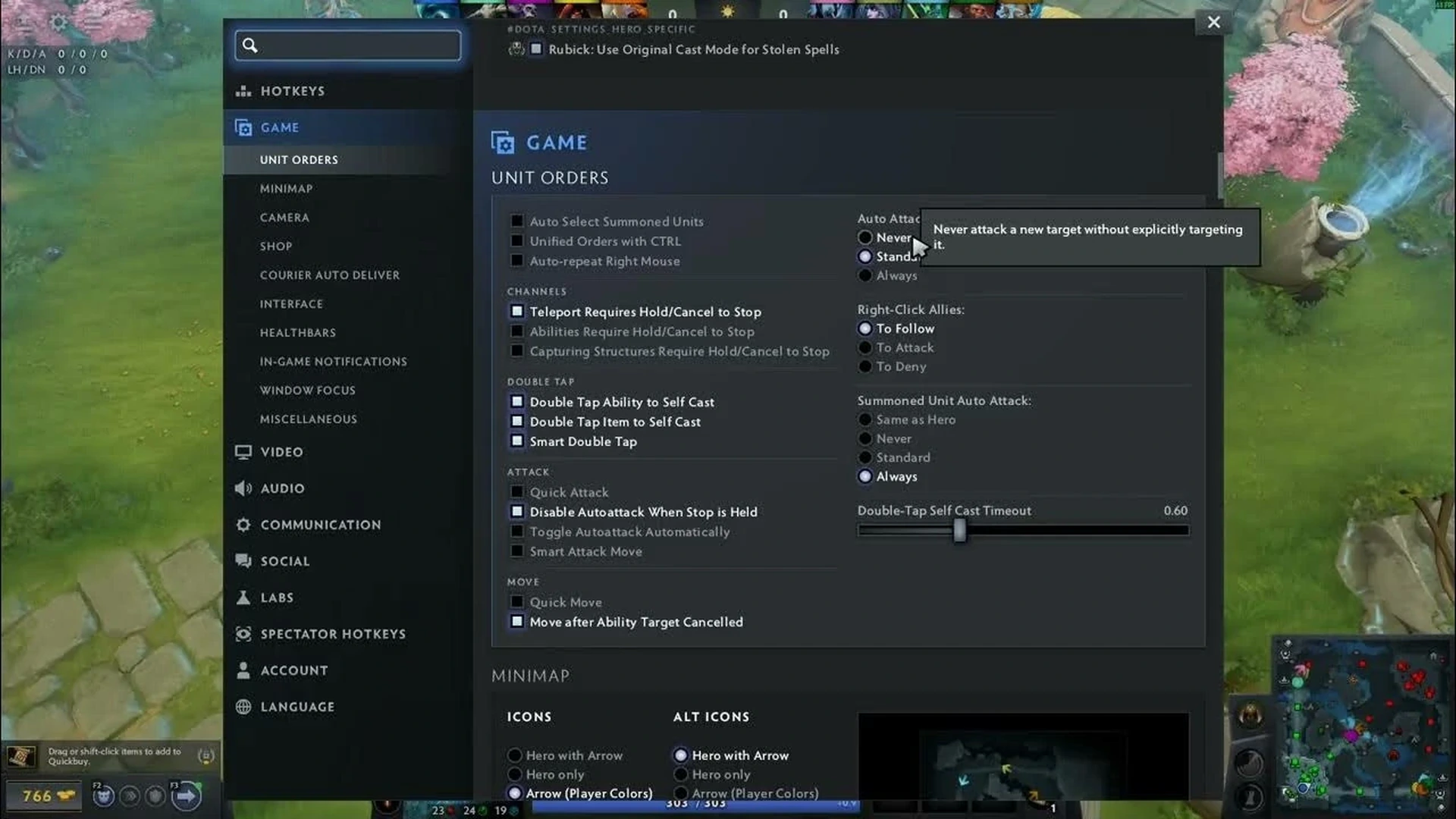
Open the Settings menu and look for Auto Attack under advanced game options. Pick Never, Standard, or Always based on how you want the unit to act.
Choose Never if every attack should come from a direct command. Standard permits normal automatic responses after typical orders, and Always is the most aggressive option.
If the client offers a separate behavior for summoned units, review that too. The hero and its controlled units don’t necessarily need the same setting.
Confirm the change took effect
Test a spell, a move command, and the Stop command in separate runs. Note whether the hero goes back to attacking after each one.
Run the same test with a summon or illusion. Their selection and orders may reveal a setting that wasn’t clear on the main hero.
Avoid common problems
Auto attack doesn’t pick the best target. It might expose a hidden position or hit the wrong creep.
Stop and Hold Position serve different purposes. Bind both before you test lane control.
An imported configuration can bring back an older mode. Check the visible menu again after importing settings.
Final check before a normal match
Run the method once more in a new private lobby and verify the visible result. Then set every temporary option back to its usual value. This brief check keeps a practice command or experimental control from carrying over into your next regular game.
Menus and internal commands may change with updates. If the current client lacks an option described here, use the visible equivalent rather than forcing an older file or command. This post stays a draft so an editor can verify the live interface before it goes up.
Comments (0)