

Published
Dota 2 lets you run the game clock faster or slower during a private test. That helps when you need to hit a specific timing, wait out a respawn or repeat a controlled drill. It only works in offline or private lobbies, not in public matchmaking.
The console command changes the entire local simulation, not just one hero. Movement, projectiles, timers and animations all shift together.
Apply the current method
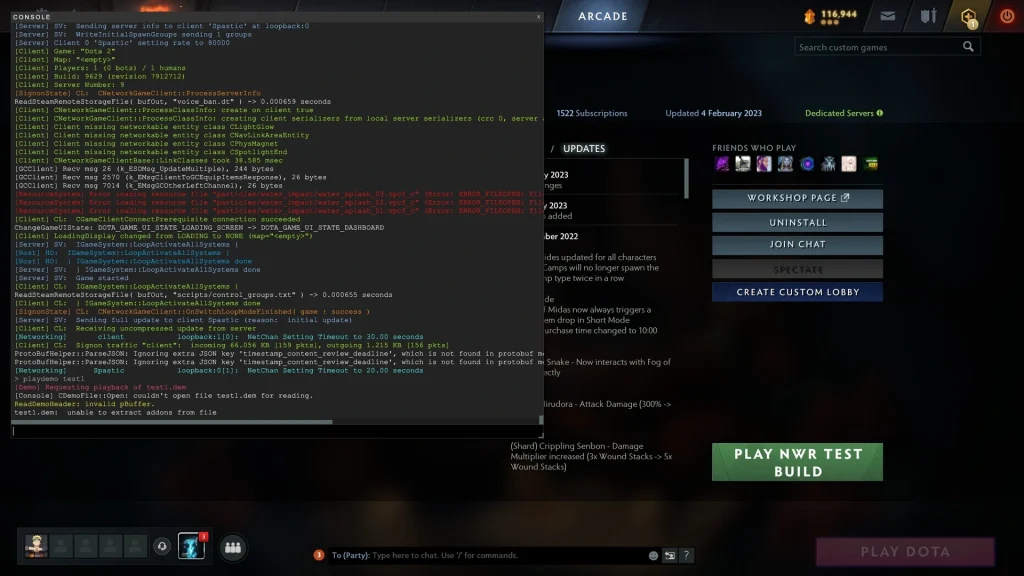
Open a private lobby and turn on cheats before the match begins. Bring up the developer console and type sv_cheats 1 if the local session still needs it.
Type host_timescale followed by a number. Anything above 1 speeds the simulation up, and anything between 0 and 1 slows it down.
Enter host_timescale 1 once the test is finished. Normal speed returns before you compare damage, movement or cooldowns.
Confirm the change took effect
A moderate value such as 2 works well for everyday testing. Extreme values can make the client drop visual details you may need, which lowers the usefulness of the exercise.
Note the game clock before you make the change. Once you’re back at normal speed, check that the clock and animations are moving at their usual pace.
Steer clear of common problems
Skip the command in matchmaking. Public servers set the game speed themselves and ignore local cheat settings.
Don’t keep a very low value running and assume the client has frozen. Set it back to 1 before you restart the lobby.
A custom game may override standard console behavior. If a workshop mode ignores the command, try it on the regular Dota map instead.
Final check before a normal match
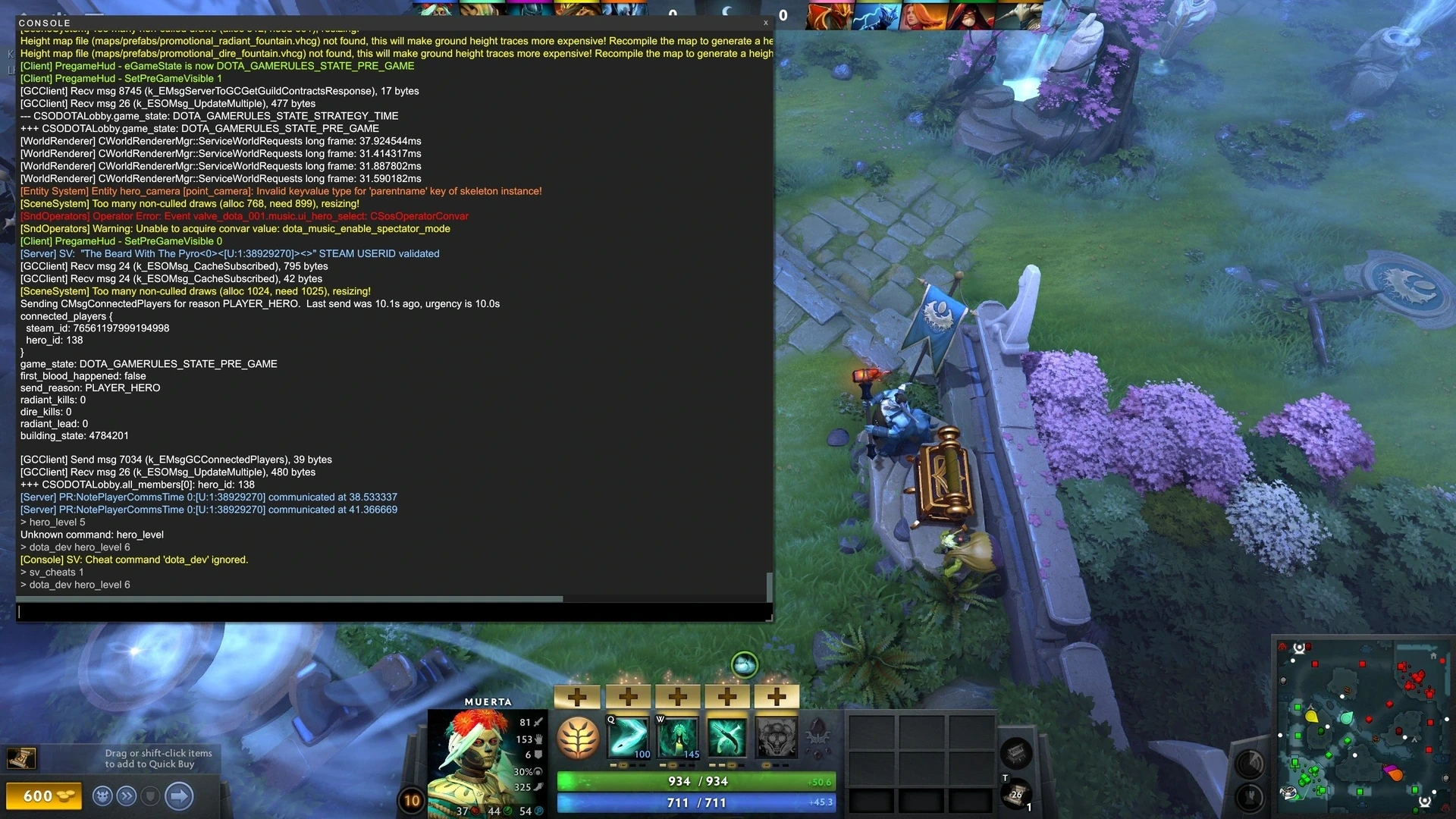
Run the method once more in a fresh private lobby. Verify the result you see, then reset every temporary setting to its default. This quick pass keeps a practice command or experimental change from carrying over into your next regular game.
Menus and console commands can shift after a patch. If the client doesn’t show an option described here, use the on-screen alternative rather than forcing an older file or command. The post stays in draft so an editor can check the current interface before it goes live.
Comments (0)