Published
Control groups let you select the same hero, summon, or group of units with a single key. They matter most for heroes like Meepo, Chen, Naga Siren, Beastmaster, and Lone Druid, and they also come in handy with temporary illusions and dominated creeps.
A workable setup tends to be simple: one key picks the main hero, a second picks every other unit, and two or three custom groups cover the special ones. Piling on too many groups usually causes more mistaps than it saves.
Set your control group hotkeys
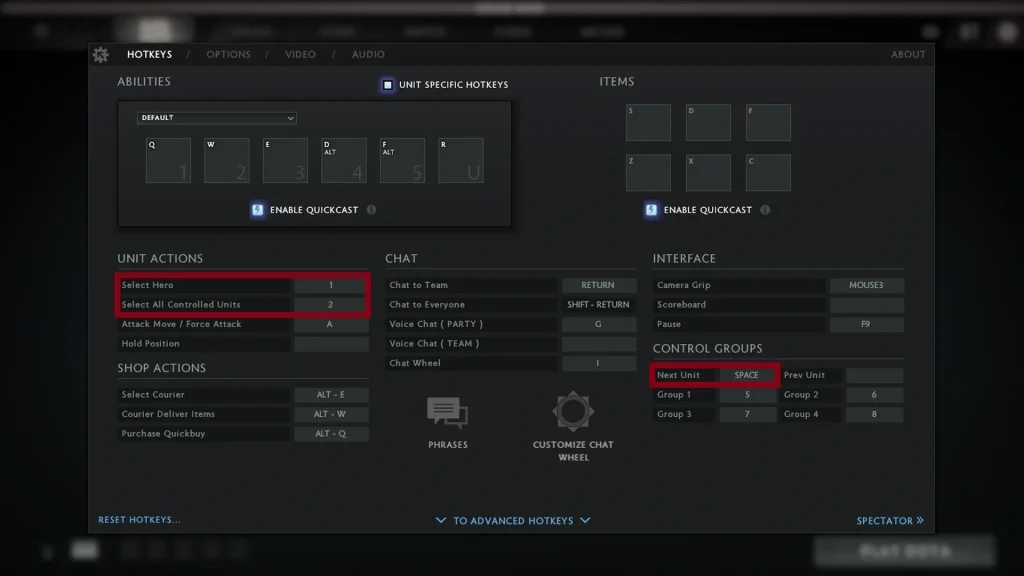
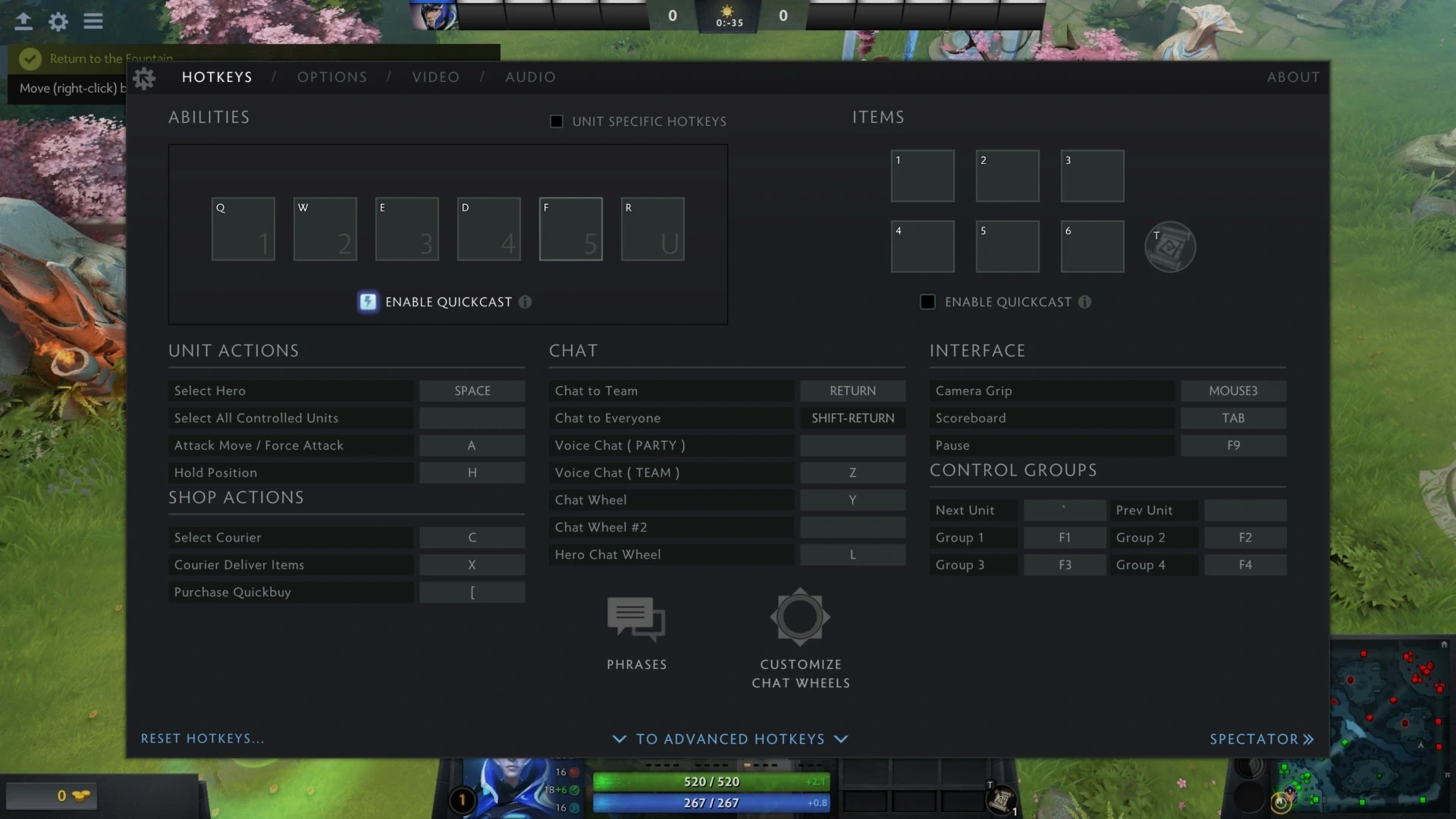
Go to Settings and pick Hotkeys. Locate Select Hero, Select All Controlled Units, and Select All Other Units, and bind those three first. After that, give Control Group 1, Control Group 2, and Control Group 3 keys that feel comfortable.
Number keys are popular, though nothing forces you to use them. Stay away from keys already tied to an item, ability, shop, or camera action. Check each binding in Demo Hero before you queue for matchmaking.
Advanced Control Groups add extra slots, but only bring them in when a particular hero truly needs them. A smaller setup is easier to recall mid-fight.
Create and recall a group
Pick the units you want with a drag box or by clicking them one at a time. Hold Ctrl and tap the group hotkey, and the client saves that selection. Tap the hotkey once later to select those units again.
Double-tap the group hotkey to snap the camera to that group. It works well for a scouting summon or a unit pushing a different lane. A double tap can also drag the camera away from your main hero, so be deliberate with it.
To overwrite a group, select the new units and press Ctrl with the same hotkey. If you want to add units without losing what’s already saved, hold Shift and press the group hotkey.
A practical three-group layout
Leave the main hero on the standard Select Hero key. Assign every controllable unit besides the hero to one easy-to-reach key. Control Group 1 is for your most important permanent summon, like Lone Druid’s Spirit Bear.
Control Group 2 suits a second unit type or a pair of illusions. Reserve Control Group 3 for a scout, a dominated creep carrying an active spell, or a single Meepo handling a separate job.
This arrangement handles most situations without crowding the keyboard. Adjust it only after several demo sessions reveal a recurring need.
| Action | Input | Result |
|---|---|---|
| Create or replace a group | Ctrl + group key |
Saves the chosen units |
| Select a saved group | Group key | Selects the stored units |
| Focus the camera | Tap group key twice | Centers the camera on the group |
| Add units to a group | Shift + group key |
Adds selected units and keeps the existing group |
| Cycle through units | Tab |
Steps the selection through the current group |
Using Tab, Shift, and unified orders
Tab steps through the units in your current selection. That’s handy when several controlled units have different active abilities. Check the selected portrait before casting, since Tab may land on a unit that doesn’t have the spell you want.
Hold Shift to queue movement, attacks, and certain abilities. A queued path lets a summon scout several locations. Long queues carry risk, because the map may change before the unit reaches its final command.
The unified orders option makes Ctrl issue a command to all controlled units at once. It’s quick for a retreat, yet it can also send a carefully placed unit into trouble. Try it in a bot match before leaving it on permanently.
Practice without losing your hero
Load into Demo Hero with a hero that demands a lot of micro. Send one group to a neutral camp while the main hero holds lane. Check on the main hero after every two or three unit commands to build a steady rhythm.
Then give orders to two groups aimed at different targets, pressing the Select Hero key after each one. Speed isn’t the aim. The aim is giving the right order without leaving your hero exposed.
Control group assignments usually sync through Steam Cloud. Verify them again after switching accounts, turning off Cloud sync, or swapping configuration files.
Fix groups that pick the wrong units
Rebuild the group in a fresh demo session. Select only the unit types you want and press Ctrl with the group key. If a temporary unit keeps showing up, check the auto-select summoned units setting and the unified orders settings.
Some hero-specific groups carry over between games. That’s useful for Meepo and Lone Druid, but a stale group can cause confusion after a major patch. Overwrite it rather than piling extra keys on top of the problem.
If a hotkey does nothing, look for conflicts on both the basic and advanced hotkey pages. Dota may flag a conflict, but a custom layout can still leave one action hidden behind another.
Comments (0)