

Published
Dota 2 handles many interface actions through the system cursor, while camera movement and camera grip are set inside the game. Start with a stable Windows or driver configuration, then fine-tune the camera in Dota 2.
Cross the screen from the centre to the minimap several times. The pointer should land on the target without needing extra corrections.
Use the current method
If the cursor feels inconsistent, disable pointer acceleration in your operating system. Keep the mouse DPI at one setting while you test.
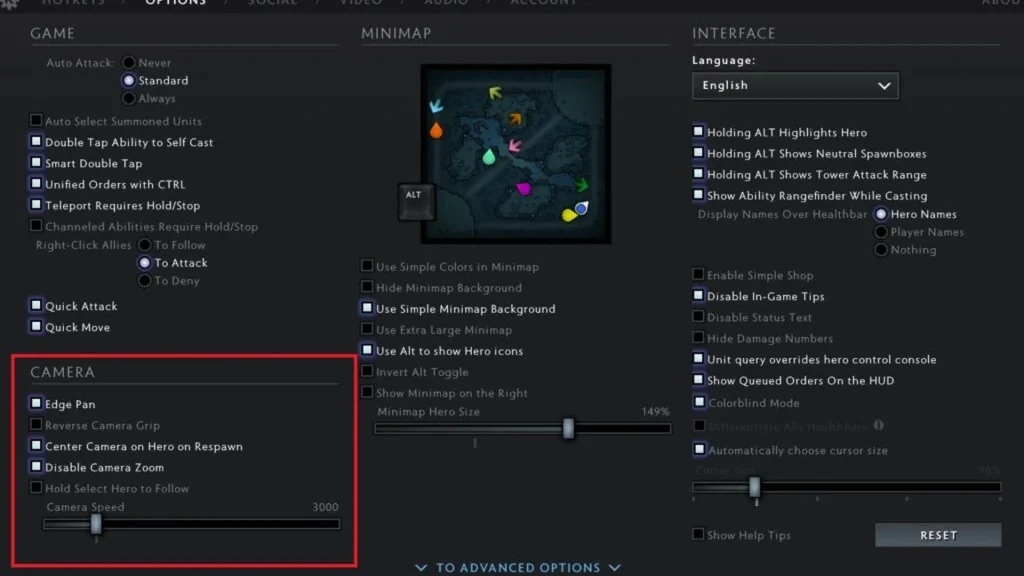
Open Dota 2 Settings and set Camera Speed for edge movement. Adjust the value gradually and retest at the same spot on the map.
If you would rather drag the view with a button, bind Camera Grip. See whether reverse grip or edge pan suits how you move around the map.
Check that the change worked
Move between lanes, then snap back to your selected hero. The camera should be quick enough for teamfights but still give you control for precise casting.
Try buying items and moving things around the inventory. A camera speed that feels right while panning may be too fast for small interface targets.
Avoid common problems
Don’t adjust DPI, operating-system pointer speed and in-game camera speed all at once, or you won’t know which change made the difference.
Stay away from outdated console values that no longer exist in the current client. Stick to the menu options you can see unless you know exactly what a command alters.
Changing display resolution or monitor scaling can alter how edge movement feels. Run the test again after either change.
Final check before a normal match
Run the method once more in a fresh private lobby. Confirm the result, then reset every temporary setting to its usual value. This brief check keeps a practice command or experimental control from carrying over into your next regular game.
Menus and internal commands may change after a patch. If the current client doesn’t show an option mentioned here, use the visible alternative rather than forcing an old file or command. The saved post stays as a draft so an editor can verify the live interface before publication.
Comments (0)