
Published
Steam Cloud already keeps regular Dota 2 settings and can sync many controls automatically. A separate config backup is still worth making before you reinstall Windows, switch accounts, experiment with console commands, or move to a different computer.
The most reliable backup covers your Steam user configuration and any custom autoexec.cfg. Avoid overwriting the whole cfg folder with a download from an unknown source. Outdated commands can break current binds or cause errors after a patch.
Have Dota store the standard settings first
Adjust the options and hotkeys you need inside the client. Dismiss the settings window and quit Dota properly. Let Steam finish syncing before you close it or shut down the machine.
Confirm that Steam Cloud is turned on for Dota 2 in its Steam properties. Cloud sync can keep many settings and control groups intact, but it doesn’t replace a manual backup when several people share one computer.
Relaunch Dota and check your controls. If a setting disappears right away, the cause could be a conflicting bind, a read-only file, or a Cloud conflict.
Locate the key folders
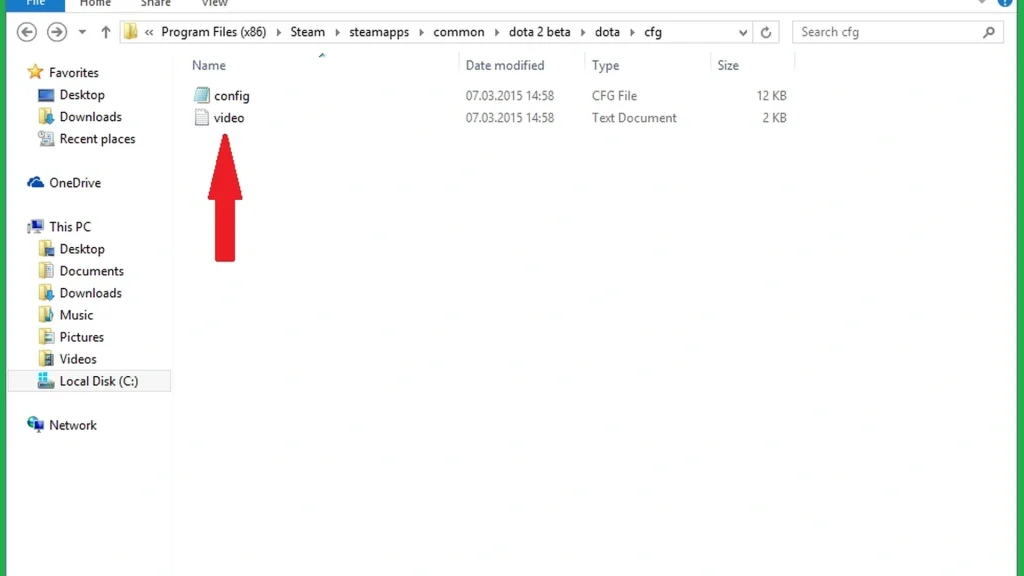
The game install usually includes steamapps/common/dota 2 beta/game/dota/cfg. This is where autoexec.cfg and other local engine config files typically live.
Account-linked Steam data is normally kept under Steam/userdata/your Steam ID/570. The remote and local config folders inside that path can hold synced Dota settings.
Steam may be installed on another drive. Open Dota 2 properties, select Installed Files, and click Browse to find the actual game folder instead of assuming it’s on drive C.
| Item | Usual path | Role |
|---|---|---|
| Custom startup commands | game/dota/cfg/autoexec.cfg |
Applies tested console values at launch |
| Account configuration | Steam/userdata/Steam ID/570 |
Holds account-specific Dota settings |
Steam Cloud |
Steam properties for Dota 2 | Syncs supported settings |
| Manual backup | A folder outside the Steam library | Keeps files safe during a reinstall or repair |
Build a clean autoexec.cfg
Open a plain text editor and create a file named autoexec.cfg inside the game/dota/cfg folder. Make sure Windows didn’t add .txt to the end. Place one verified console command on each line.
Reserve autoexec for commands the client can’t save through its regular menus. Don’t repeat standard hotkeys without a specific reason. Add a brief comment above any unusual command so its purpose stays clear later.
Restart Dota and open the console to check the values. If the client isn’t running the file, type exec autoexec in the console and read the error message.
Store a named configuration
On supported builds, the console command host_writeconfig followed by a simple name writes a named configuration. For example, host_writeconfig practice creates a config you can load later with exec practice.
Limit the file name to letters, numbers, and underscores. Skip spaces and quotation marks. The output may contain many engine values, so review it before treating it as a portable personal config.
A named config won’t stand in for Steam Cloud and may skip some interface settings. Keep a manual folder backup as well.
Create a manual backup
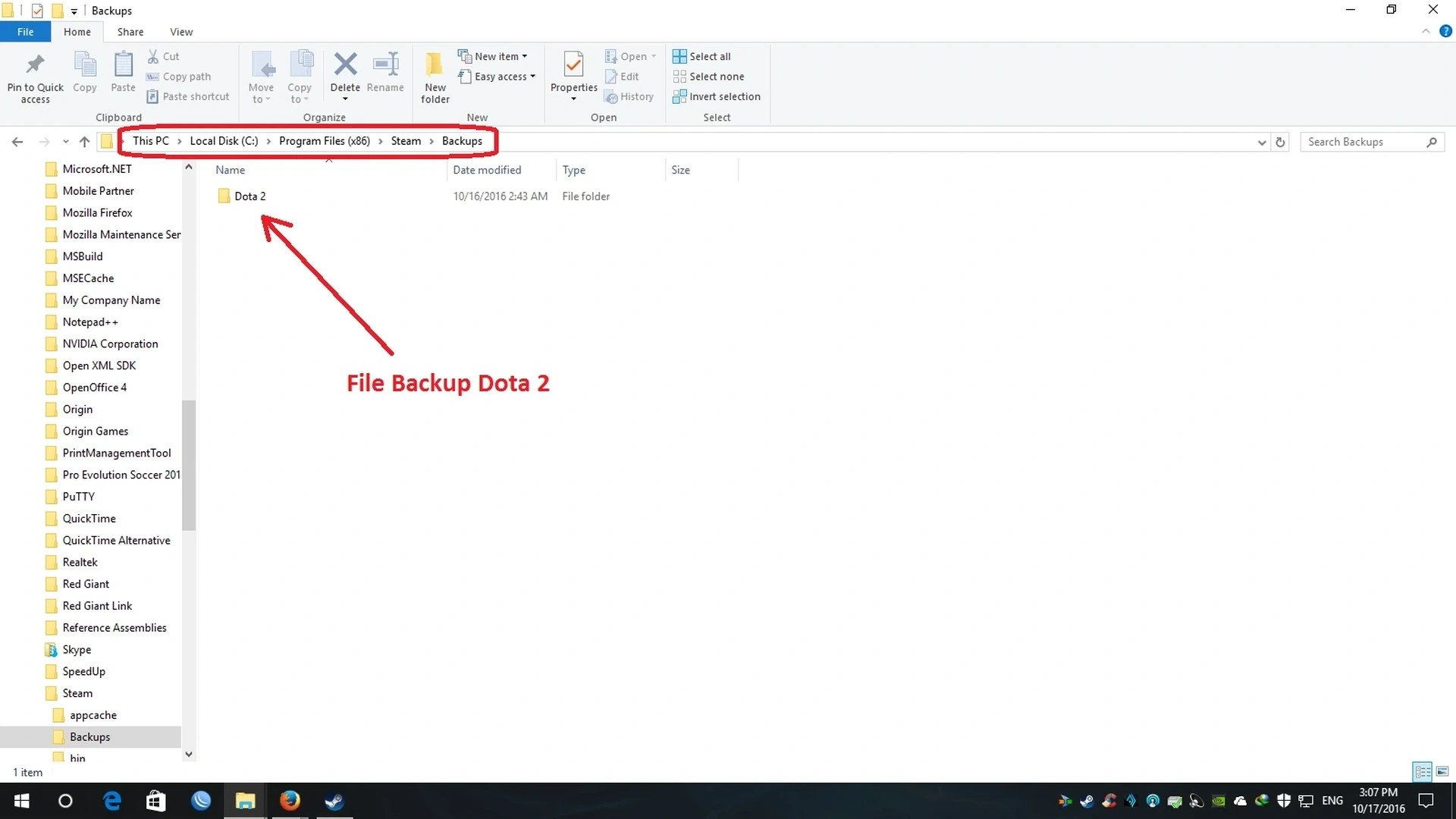
Shut down Dota and Steam before copying active configuration files. Make a dated folder and copy autoexec.cfg along with the account’s 570 configuration folder. Preserve the original folder structure inside the backup.
Keep the backup off the Steam installation, since a reinstall can wipe library contents. A second drive or a private cloud folder offers stronger protection.
Never publish a complete userdata folder. It may include account-related information and personal preferences. Share only the specific harmless config lines needed for troubleshooting.
Restore without triggering a Cloud conflict
Install Dota and launch it once. Exit the game and Steam. Back up the freshly generated files before copying the older configuration into the matching folders.
Start Steam and handle any Cloud conflict carefully. Choose the version with the correct modification date. Load a bot match and test hero selection, abilities, items, camera, chat, and control groups.
If the client misbehaves, restore the fresh files and add custom commands back one at a time. That way you can pinpoint which old line caused the problem.
Comments (0)