

Published
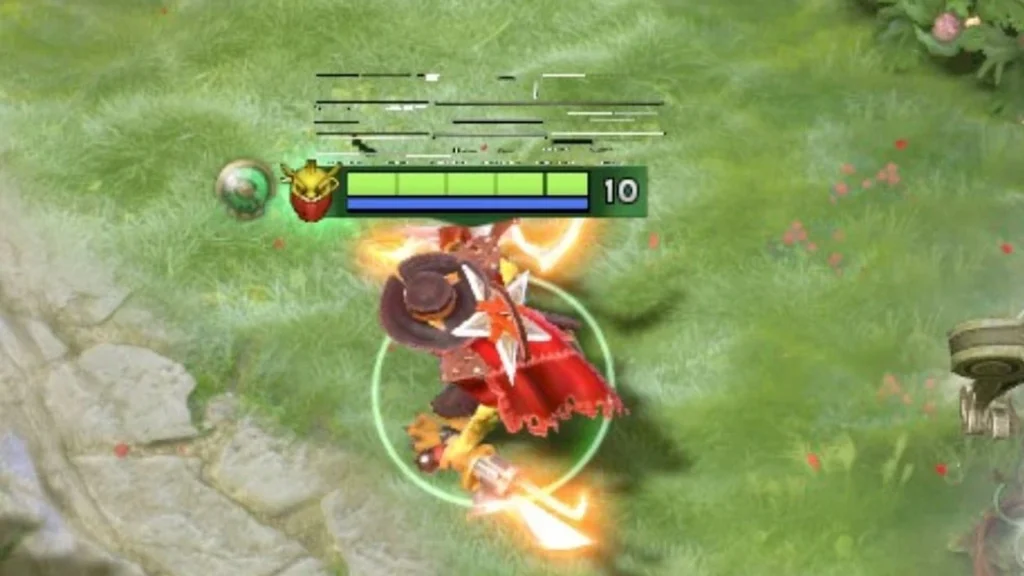
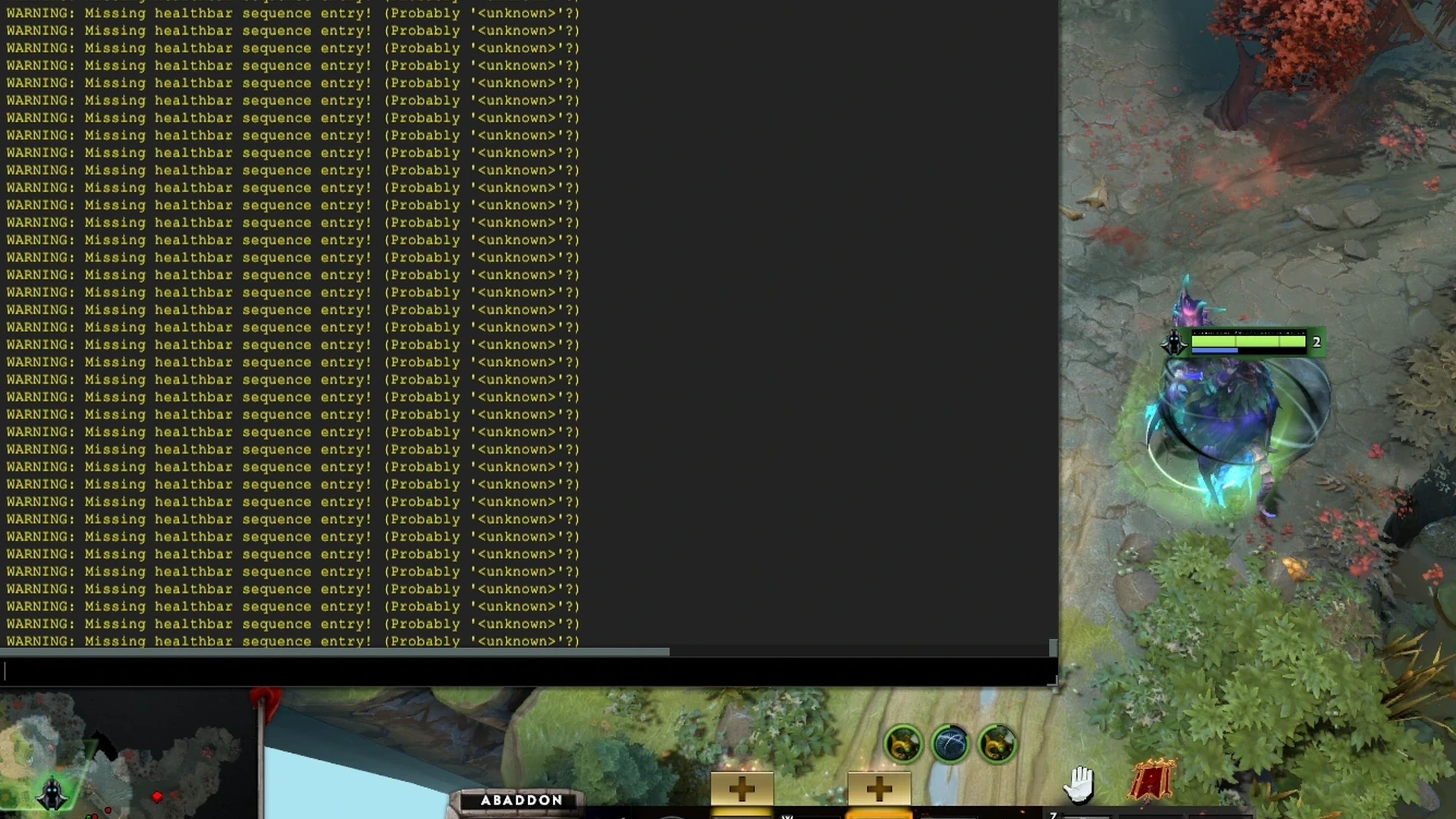
Dota 2 splits overhead health bars into thin and thick segments so large health pools are easier to gauge. Others prefer a plain bar with fewer dividers. The current HUD command adjusts the overall bar appearance, but older custom marker commands have become unreliable.
Test any change in Demo Hero before using it elsewhere. Markers assist with last hitting and estimating damage, so hiding them strips out useful data along with the clutter.
Turn on and access the console
Go to Settings, select Options, then switch on the developer console under advanced settings. Head back to Hotkeys and bind a key to open the console. Launch Demo Hero before you try any HUD command.
Bring up the console and type dota_hud_healthbars with a number from 0 to 3 after it. Hit Enter, shut the console, and look at heroes and creeps. What you see may vary with the current HUD build.
Entering the command with no number shows its present setting. Note the original value before you alter it. Most setups use 3 by default.
Pick a health bar style
Setting 0 turns off overhead health bars. The screen looks tidiest this way, but you lose key fight details. Avoid it in regular matches.
Setting 1 shows a plainer bar with the primary dividers gone. Setting 2 uses another slimmed-down marker design. Setting 3 brings back the default segmented look found in the standard client.
Try each setting on a tanky hero and on lane creeps. A layout that reads well on a level-one hero can turn muddy once that hero has several thousand health.
| Value | Health bar result | Recommended use |
|---|---|---|
| 0 | Overhead health bars hidden | Screenshots or controlled testing only |
| 1 | Simpler bar without the main divisions | Players wanting less on-screen detail |
| 2 | Reduced alternative marker style | Check against Demo Hero |
| 3 | Standard segmented health bar | Regular matches and stock setup |
Older marker size commands are unreliable
dota_health_per_vertical_marker used to set how much health each vertical line stood for. Recent client reports indicate that this has been removed or switched off, so avoid basing any current setup on it.
An older command once printed exact health figures over the bar, but Valve dropped that option years back. You may still spot similarly named variables in the console list, though they won’t necessarily affect the live overhead display.
Trust only what you see in your current demo session. If a command changes nothing, reset it to default and keep it out of autoexec.cfg.
Retain the details you need in fights
Segments let you judge health quickly before a last hit or a finisher. Traditionally, a thin line marks a smaller chunk of health and a thicker one marks a bigger chunk. The exact look may shift with interface updates.
Axe, Necrophos, and other heroes that depend on health thresholds benefit from clear health readings. Hiding markers won’t reveal the exact kill threshold. When a target’s health number is visible, use it, and factor in barriers, regeneration, and damage reduction.
A solid bar can make sense when markers look crowded on a small screen. Try raising interface scale or resolution before stripping every bar, since sharper rendering may fix the readability issue on its own.
Bring back the default bar
Open the console and type dota_hud_healthbars 3. If the interface doesn’t update, restart Dota. Delete any line in autoexec.cfg that alters this command, or the custom value could come back on launch.
If overhead bars still don’t appear, look at spectator settings, custom HUD files, and replay mode. Replays may apply display options that differ from what a regular player sees.
Save a screenshot of both the default and custom styles. That reference makes troubleshooting far easier after a patch changes the interface.
Comments (0)