

Published
Dota 2 uses a free camera by default, but the client can snap the view onto the selected hero with one press. That helps after a teleport, when checking the minimap, or when a fight breaks out unexpectedly. Locking the camera permanently is usually a poor fit, since players still need to watch other lanes.
Move the camera elsewhere, press Select Hero and check that the view snaps back right away.
Use the current method
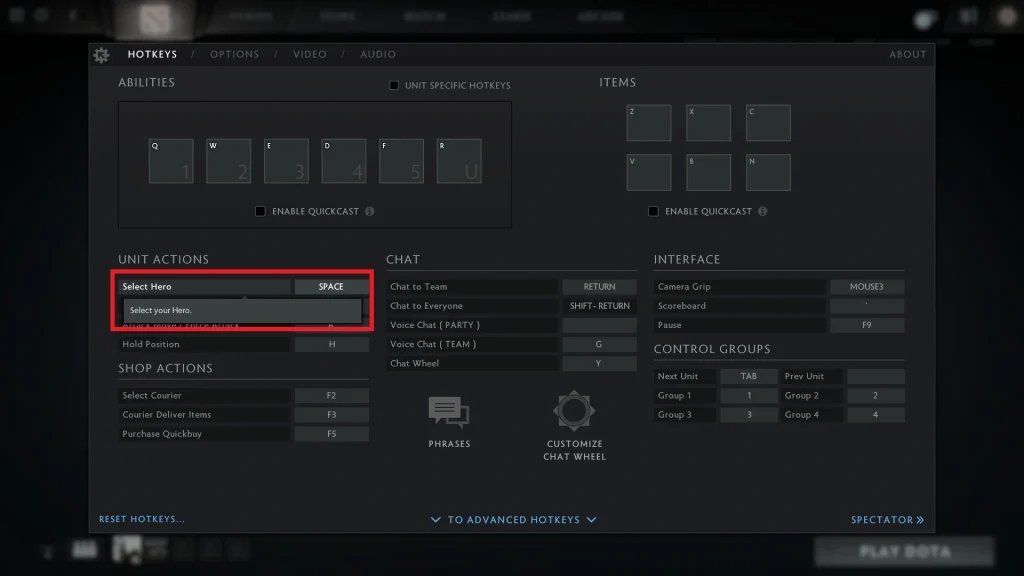
Go into Settings and verify which key is assigned to Select Hero. One tap selects the hero and recenters the camera.
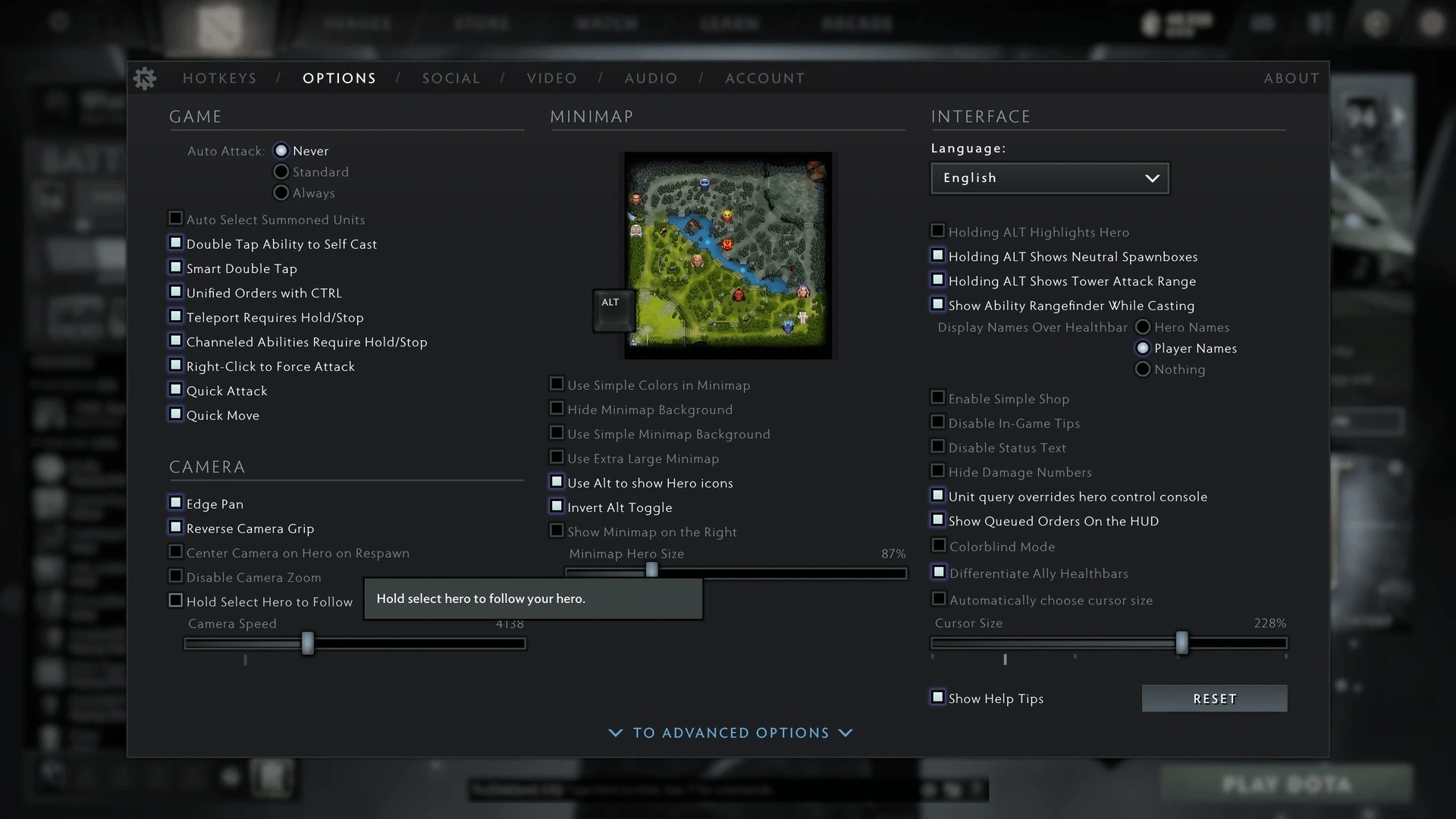
If the current client offers a hold or follow option for that key, you can use it. Let go of the key when you want to move the camera freely again.
Assign control groups for summons on their own. The main hero key should always bring both selection and view back to the hero.
Check that the change worked
Try the key after selecting a courier or another controlled unit. It should return you to the hero without clicking the portrait.
Switch back and forth between the hero, the minimap and a team fight. Quick recentering matters more than staring at the hero model alone.
Avoid common problems
Don’t assign Select Hero to a key that an item or ability already uses. Overlapping binds can make the command feel unreliable.
A locked view cuts down map awareness and may hide enemies approaching. Keep it to brief moments instead of the whole match.
Camera behavior can differ in replays and spectator mode. Test the bind in a live practice lobby.
Final check before a normal match
Run through the method once more in a fresh private lobby. Confirm the result you see, then set every temporary option back to its usual value. This brief check keeps a practice command or experimental control from carrying into your next regular game.
Menus and internal commands may shift after an update. If the current client lacks an option described here, use whatever replacement it shows rather than forcing an old file or command. The saved post stays as a draft so an editor can verify the current interface before it goes live.
Comments (0)