

Published
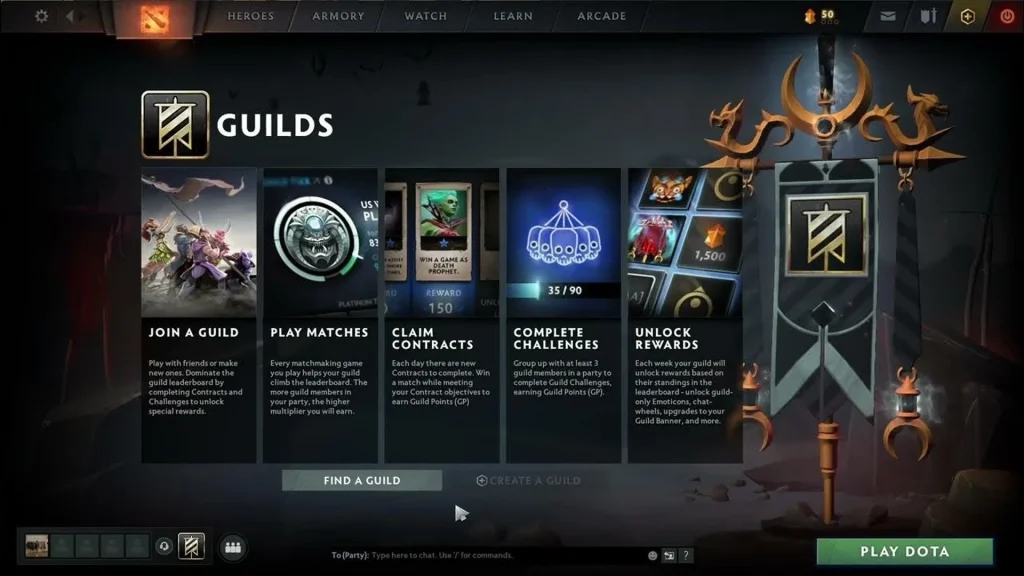
A guild gives a group of regular players a shared name, a chat room and a roster. It is different from a temporary party and from a pro team registration. Whether you can join depends on the guild’s privacy setting and how many seats it has left.
Once you’re in, the guild’s name and chat should appear. If the roster still looks outdated, close and reopen the social panel.
Follow the up-to-date steps
From the main client, go to the guild section and look up the exact name or tag. Check the stated language, region and membership requirements.
Open guilds can be joined straight away. If approval is needed, submit a request instead. Give an officer time to respond rather than sending repeated invites.
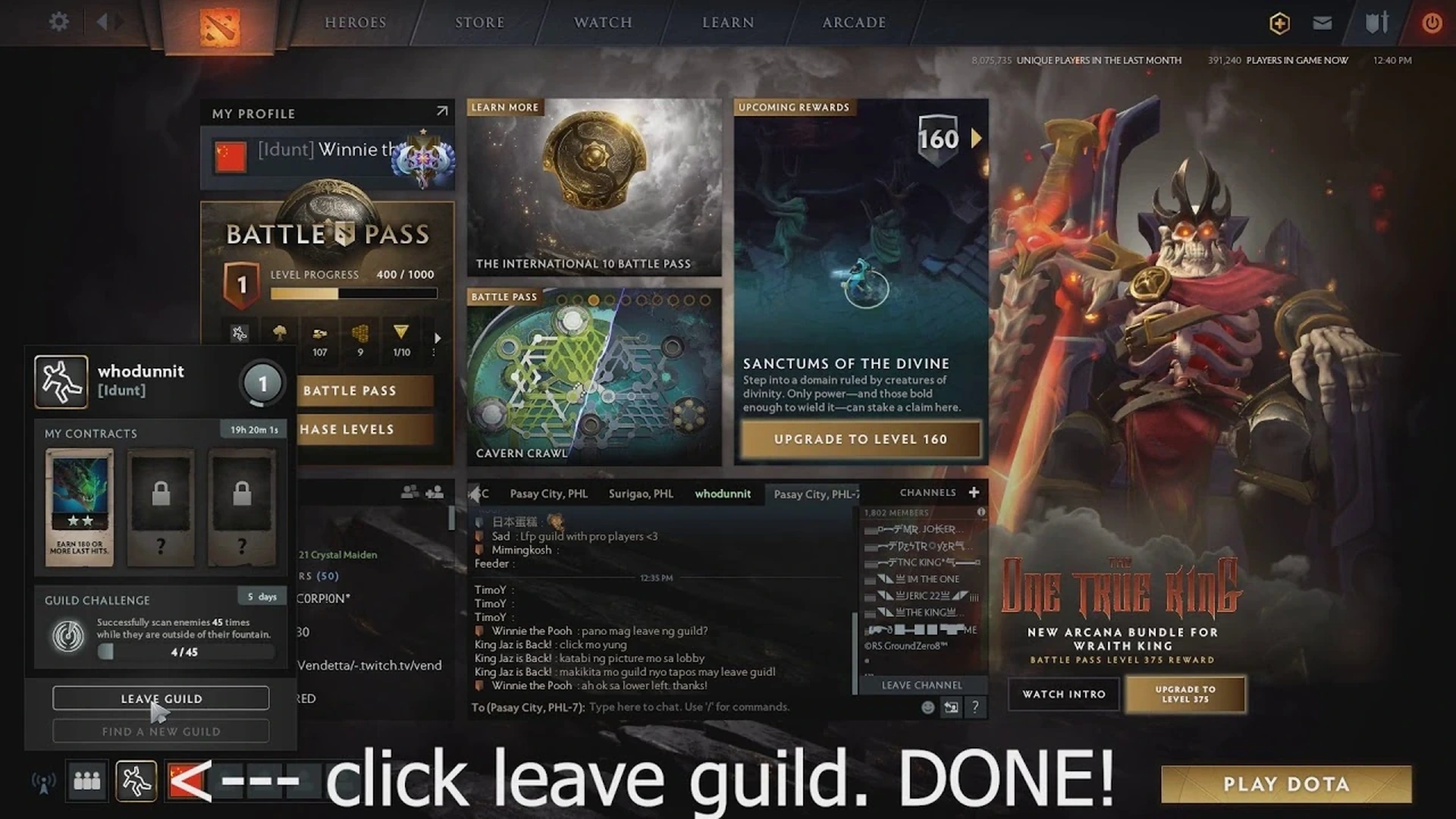
To leave, open the member or settings menu and pick the leave option. Before you confirm, make sure you don’t hold an officer role.
Verify the result
Look at your permissions before inviting anyone. Regular members often can’t approve join requests.
Once you’ve left, make sure the previous guild’s chat and tag are gone. A fresh invite can still reach you later.
Common pitfalls to watch for
If a guild has no open slots, it can’t take anyone new until someone leaves. That’s expected behaviour, not a client bug.
Depending on current guild rules, leaving can hand over or drop leadership. If the menu asks, name a new leader before you go.
Don’t open outside login links posted in guild chat. Joining a guild never requires handing over your Steam credentials.
Last check before a regular match
Run through the steps once more in a new private lobby. Check the result on screen, then reset any temporary setting to its usual value. This quick pass keeps a practice command or experimental option from carrying over into your next regular game.
Menus and internal commands may shift after a patch. If an option described here is missing from your client, use whatever the interface shows instead of forcing an old file or command. This article stays a draft until an editor verifies the current interface before it goes live.
Comments (0)