

Published
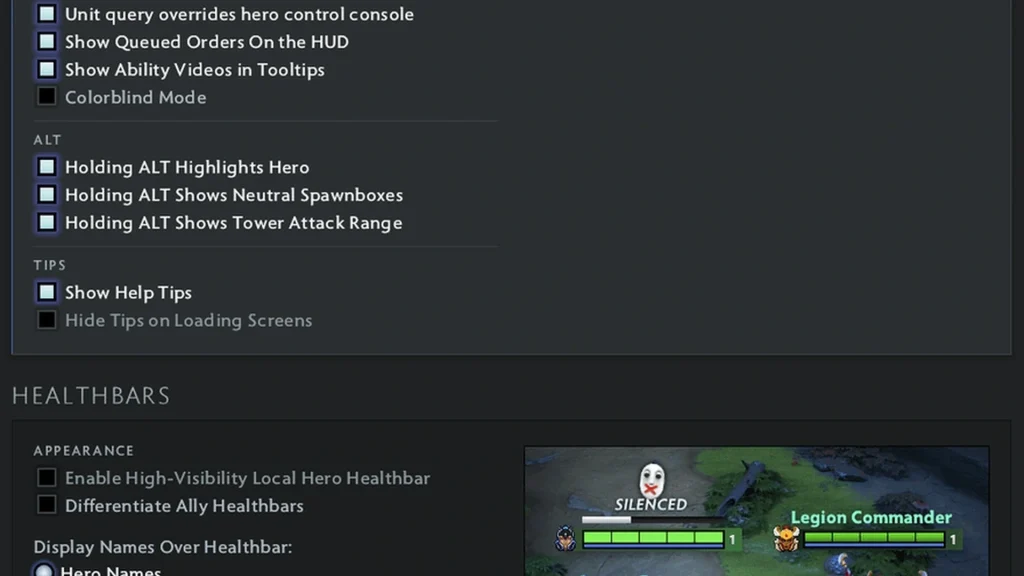
Dota 2 gives you two safe routes to clearer health bars. Colorblind mode alters the friend and enemy palette. The high-visibility local hero setting makes your own bar stand out more in combat.
The current client lacks a full color picker for each health bar. Older console guides list separate red, green, and blue values, but those commands behave unpredictably in newer builds. Begin with the officially supported interface options.
Enable the built-in color options
Go to Settings, then Options. Look for an accessibility or colorblind entry and switch it on. Its wording depends on your client language. Load a demo match and compare allied, enemy, neutral, and local hero bars before you commit to the change.
Next, open Interface and turn on the high-visibility local hero health bar. It highlights only your own hero, which helps when summons, illusions, and spell effects crowd the same spot.
Try each setting on its own. Some players like the high-visibility bar alongside regular team colors, while others need the extra friend and enemy contrast that colorblind mode provides.
Reserve the console for basic switches
Turn on the developer console in advanced settings. Bind a console hotkey, start a demo match, and type dota_hud_colorblind 1. Enter dota_hud_colorblind 0 to go back to the default scheme.
The command dota_hud_healthbar_local_player_high_visibility 1 turns on the stronger local hero bar in supported builds. Set it to 0 to turn it off. The menu is still the safer option, since it shows the current state clearly.
Avoid pasting long config files from old forums. Commands may be deleted or reused for something else. Change a single value, verify the outcome, and note what the previous setting was.
| Setting | Preferred method | Function |
|---|---|---|
| Colorblind colors | Accessibility setting | Shifts friend and enemy color contrast |
| Your hero’s health bar | Interface setting | Helps you spot your own health bar faster |
| Colorblind console toggle | dota_hud_colorblind 1 |
Activates the supported colorblind scheme |
| Default colors | dota_hud_colorblind 0 |
Restores the standard scheme |
Why hand-made RGB commands fall short
Older setups altered team colors with commands ending in _color_r, _color_g, and _color_b. Those values could also change minimap icons, selection outlines, and other HUD elements, so a tweaked color can hurt readability elsewhere.
Recent patches sometimes ignore legacy variables. A command may still exist yet no longer affect the health bar above heroes. That explains why a command can echo a value in the console without producing any visible change.
You do not need a custom HUD or edited game files for this. Stick with official settings and leave interface files alone. Modified files may break after an update and make troubleshooting harder.
Put together a setup that is easy to read
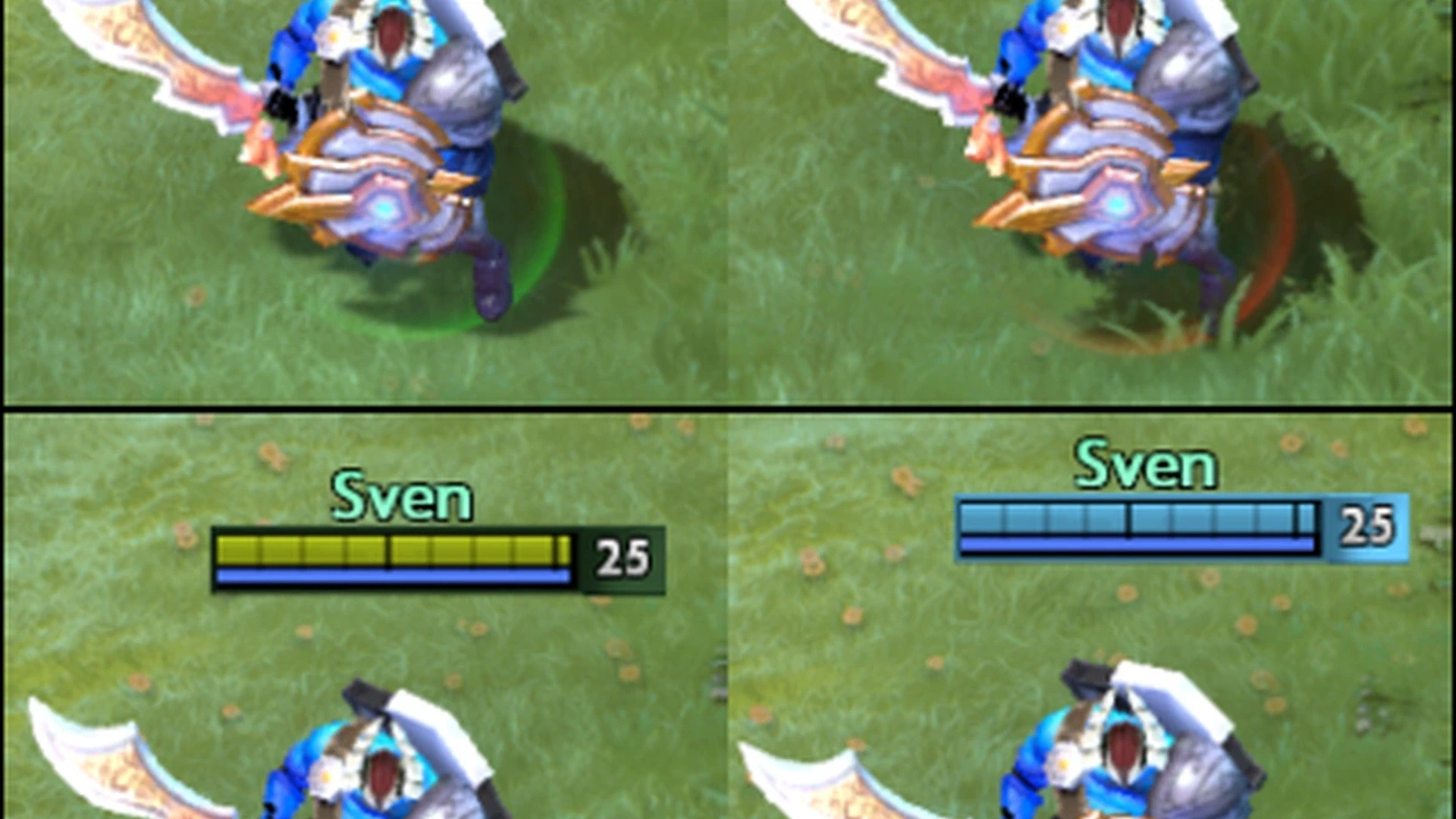
Pick a color mode first, then fine-tune how visible the bars are. Keep hero names on only if they aid recognition. Oversized names can hide units in a busy fight, particularly on a low-resolution screen.
Adjust render brightness and monitor contrast before judging any color. Turn off aggressive monitor filters that flatten dark tones. Dire areas use darker terrain, so a bar that reads well at the Radiant base can get lost near Dire trees.
Run every comparison in the same demo fight. Spawn several heroes or illusions and position them near creeps. Watch whether your own hero stays easy to find while its health drops quickly.
Go back to the default look
Open Settings again and switch off colorblind mode and the high-visibility option. If you used console toggles, set both to 0 and restart the client. The standard interface should return without losing any other controls.
If colors still look off, check your monitor profile and graphics driver color settings. Steam launch options and third-party overlays can also add filters. Turn those off temporarily before resetting the whole Dota configuration.
Save a screenshot of the settings that work for you. It serves as a quick reference after a client update or when you move to another computer.
Comments (0)